Renegade Games
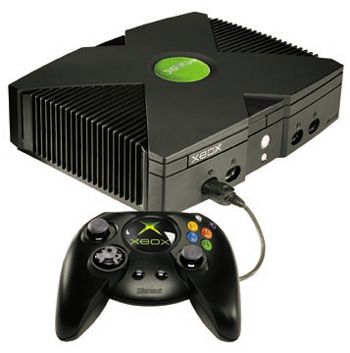
Indicator Lights on original Xbox troubleshooting.
You can also try xbox support. Click to go to xbox support.
The indicator light of your Original Xbox console flashes red
This article describes how to troubleshoot the problem when an indicator light is flashing red.
EEPROM is a memory device that does not lose the information programmed to it when power is lost. This is where items such as language setting, video modes, audio modes, and game region are stored.
CAUSE
An indicator light that is flashing red indicates that there is an Electrically Erasable Programmable Read Only Memory (EEPROM) error and that Xbox cannot start.EEPROM is a memory device that does not lose the information programmed to it when power is lost. This is where items such as language setting, video modes, audio modes, and game region are stored.
THINGS TO TRY
| 1. | Remove all discs from the Xbox console. | ||||
| 2. | Turn off the Xbox console and leave it off for thirty seconds. | ||||
| 3. |
Carefully read the Xbox instructional manual that came with the
Xboxvideo game system for instructions about to use and how to position
the Xboxconsole to avoid overheating and other problems.
| ||||
| 4. | After the Xbox console is set, turn it back on and make surethat you see a steady green indicator light on the front. | ||||
| 5. | If the console continues to flash a red light, the console may need repair by Microsoft. |
The indicator light of your Original Xbox console flashes green and orange
When you use your Xbox console, the indicator light may flash repeatedly in a green and an orange pattern.
Note (This behavior only applies to the connection between the AV Pack and the Xbox console. It does not apply to the connection between the AV Pack and the television.)
CAUSE
This behavior may occur if the Xbox console does not detect the AV Pack.Note (This behavior only applies to the connection between the AV Pack and the Xbox console. It does not apply to the connection between the AV Pack and the television.)
THINGS TO TRY
| 1. | Disconnect and then reconnect the Xbox AV Pack. Make sure the connections are firmly connected. Turn the console back on, and then examine the indicator light. |
| 2. | If the behavior continues, try another AV pack if one is available. |
| 3. | If this resolves the issue, the original AV pack may not be functioning correctly. |
| 4. | If the behavior continues, it indicates a problem that requires Microsoft to service your console. |
The indicator light of your Original Xbox console flashes orange
When you are using your Xbox console, the indicator light flashes orange.
CAUSE
This behavior occurs when the internal components have overheated and the Xbox console has automatically shut down to prevent damage.THINGS TO TRY
| 1. | Turn off the Xbox console, and then let it cool for at least10 minutes. |
| 2. | Carefully read the Xbox User Guide that came with the Xboxvideo game system for instructions about correct use and placement of the Xbox console to avoid overheating and other problems. |
| 3. | Make sure the Xbox console is not located near a heatsource. Heat sources can include the back side of televisions, computers, and monitors,and other electrical devices. |
| 4. | Make sure the vents are not blocked. Vents are located on theleft and right sides, and on the rear of the Xbox console. Make sure each venthas at least six inches of clearance and a path to open air. If the Xbox isinside a cabinet, try moving it to see if this prevents heat problems. |
| 5. | After the Xbox console has cooled, turn it on and makesure that you see a steady green indicator light on the front. Check for airmovement near the fan on the back of the console. |
| 6. | If
the console continues to overheat, or if the fan is notworking
properly, it may indicate a problem that requires the console to
beserviced by Microsoft. |
The indicator light of your Original Xbox console flashes red and orange
The indicator light on the Xbox console may flash red and orange. This article describes how to troubleshoot this behavior.
CAUSE
This behavior occurs when a random access memory (RAM) error occurs, and then the Xbox cannot start.THINGS TO TRY
| 1. | Remove any disc from the Xbox console. | ||||
| 2. | Turn off the Xbox console, and let it rest for 30seconds. | ||||
| 3. |
Carefully read the Xbox Instructional Manual that came with the
Xboxvideo game system for instructions about correct use and placement
of the Xboxconsole to avoid overheating and other problems.
| ||||
| 4. | After the Xbox console has rested for at least 30 seconds, turn it on, and then make surethat you see a steady green indicator light on the front. | ||||
| 5. | If
the console continues to flash a red and orange light, it may indicate
a problem that requires the console to be serviced byMicrosoft. |
The indicator light of your Original Xbox console flashes green
When you are using your Xbox console, the indicator light is flashing green.
Note (Some times solid green.)
If a flashing green light is displayed during a time that would not be considered typical Xbox function, it may indicate a problem that requires the console to be serviced by Microsoft.
CAUSE
This behavior occurs when the disc tray is opening or about to open. A flashing green light can also indicate ordinary DVDdrive activity. It could even be that you have no audio or no video.THINGS TO TRY
This is probably a problem with your audio settings. Try to boot your xbox with a standard a/v pack inttead of a HD pack.Note (Some times solid green.)
If a flashing green light is displayed during a time that would not be considered typical Xbox function, it may indicate a problem that requires the console to be serviced by Microsoft.
Solid Green with No eject, no audio or even no video
When you are using your Xbox console with a solid green and no eject, no audio or no video.
CAUSE
This is probably a bad solder point.
It could also be a heat problem, make sure your fan is working and don't put your xbox near heat sources.
If the console continues to have this problem it may indicate a problem that requires the console to be serviced byMicrosoft.
It could also be a heat problem, make sure your fan is working and don't put your xbox near heat sources.
If the console continues to have this problem it may indicate a problem that requires the console to be serviced byMicrosoft.
You can also try xbox support. Click to go to xbox support.
